
Helping Licensed Professionals Stay Licensed!

Building Websites That Work For you

Real Solutions For Real People
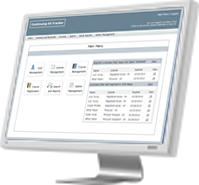

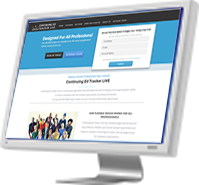
 Continuing Ed Tracker LIVE is a cloud-based application that automates the task of tracking continuing education credits
to ensure compliance with the renewal requirements of professional licenses. Our flexible design will work for any profession. Whether your license renewal requirements are simple or complex, Continuing Ed Tracker LIVE can adapt to your CE compliance needs.
An easy and affordable way to make sure your licensed professionals stay licensed.
Continuing Ed Tracker LIVE is a cloud-based application that automates the task of tracking continuing education credits
to ensure compliance with the renewal requirements of professional licenses. Our flexible design will work for any profession. Whether your license renewal requirements are simple or complex, Continuing Ed Tracker LIVE can adapt to your CE compliance needs.
An easy and affordable way to make sure your licensed professionals stay licensed.




We provide a full-range of Web development services that enable your business to be more successful. All of our Websites are uniquely developed to set our customers apart from their competition. We include the features and functions you need to create a Website that works for you. Our customized Content Management Systems (CMS) allows you to easily manage your website so you can get back to doing what it is you do best.
Do you spend more time trying to make your software work instead of having your software work for you? Are you looking for a unique application that just hasn't been developed? Our Custom Applications can help. We have helped many companies across the nation improve the way they do business by developing custom applications that meet their specific needs.